The Cafe24 paid app adds an AI agent to your store. Installing the app automatically injects the agent script into your storefront, and product information comes in directly from Cafe24. The operator clicks install in the App Store and approves analysis and the connection on the screens that follow.
Installation and management are done with the store admin account. No voidX sign-up or voidx.ai login is needed.
There are five steps in total, and they take about 10 minutes including the wait for store analysis.
Pricing and free trial
The Cafe24 paid app starts a 7-day free trial right after installation. The free trial is given only once per store, and it does not come back if you remove and reinstall the app.
| Item | Free trial | Light | Premium |
|---|---|---|---|
| Period and price | 7 days | KRW 15,000 per month | KRW 99,000 per month |
| Tokens included | 600,000 tokens | 600,000 tokens | 5,000,000 tokens |
Prices shown exclude VAT. Payments are made on the "Plans & packs" card at the top of the store dashboard. For your first plan, press "Subscribe" on a plan card. While subscribed, press "Change plan" on the "Current plan" panel to open the plan cards in a dialog and pick the new plan. Press "Buy" for token packs. After you finish paying in the Cafe24 checkout, you return to the dashboard, and the tokens on the dashboard change once the payment is applied. After you subscribe to a plan, you can buy a token pack on the same card to add tokens, and token pack tokens have no expiry date.
When the state changes from free trial to paid, or between plans, remaining tokens do not carry over. Tokens for the new state are granted fresh. The rule of deducting 16,000 tokens per chat session is the same as on other channels. The chat counts shown on plans and packs are estimates based on this rule.
When you switch plans, a confirmation dialog shows the amount charged now, the new period, the new limit and how the previous plan is settled before you pay. The unused time and usage of the previous plan are added as pack tokens. Cafe24 does not cancel the previous plan's recurring payment automatically, so after paying, cancel the previous plan in Store Admin > Apps > Purchase History > Recurring Payments.
Installing from the App Store
- Open the voidX AI app page in the Cafe24 App Store and click install.
- A consent screen appears where Cafe24 shows the permissions the app will use. These include read access to products, categories and store information, and permission to modify the design. Agreeing completes installation.
- When installation is complete, the browser moves to the
voidx.ai/{language}/apps/cafe24/{mallID}dashboard.
The 7-day free trial starts the moment you agree to the permissions. Product information also starts coming in automatically from that point.
If you closed the dashboard window, go to Apps > My Apps in the Cafe24 store admin and click [Manage]. The same screen opens again.
The dashboard connection stays valid for 30 minutes. If time passes and the "Your session has expired" notice appears, open it again through the same path.
Store analysis
The first time you enter the dashboard, the "Connect an AI chatbot to your store" screen appears. Here voidX AI analyzes your store and assigns an agent that fits your industry.
- Check that your store name is correct under "Store to connect".
- Read the regulated industry notice above the button. Stores in regulated industries such as finance and healthcare are outside the service scope.
- Click "Start analysis".
The screen changes to "Analyzing your store" and four steps run in order.
- Reading store info
- Analyzing industry & keywords
- Matching AI agent
- Issuing connection key
It usually finishes within 1 minute and keeps running even if you close the window. If it fails, an "Analysis failed" notice appears with a "Try again" button. This happens when the store cannot be reached or there is a temporary error, so click it again after a moment.
Allowing the connection and installing the add-on
When analysis finishes, a connection permission card appears below the "Analysis complete!" screen. The chatbot on your store needs this permission to communicate with voidX, and the install button turns on only after you allow it.
- Check the "Allow the AI chatbot to run on my store." checkbox.
- Click "Install add-on". While it runs, it changes to "Installing…".
- When the "All set!" screen appears, installation is complete. The "Assigned AI agent" card shows the agent's name, industry and one-line introduction.
In this step the app adds the agent script to your store design. By default it appears on product detail and product list pages. The store's SEO diagnosis score is also shown lower on the same screen.
Checking on your store
- Click "View on my store" on the completion screen to open your store in a new tab.
- Open a product list or product detail page and refresh.
- When the agent appears at the bottom right, installation is complete.
Cafe24 may take about 1 minute to apply the script. If it does not appear right away, refresh again after a moment.
If the dashboard shows the warning "A voidX widget script from another channel is also installed", your store has two voidX scripts. When both are present only one of them runs, so delete the one you do not use in your store design settings.
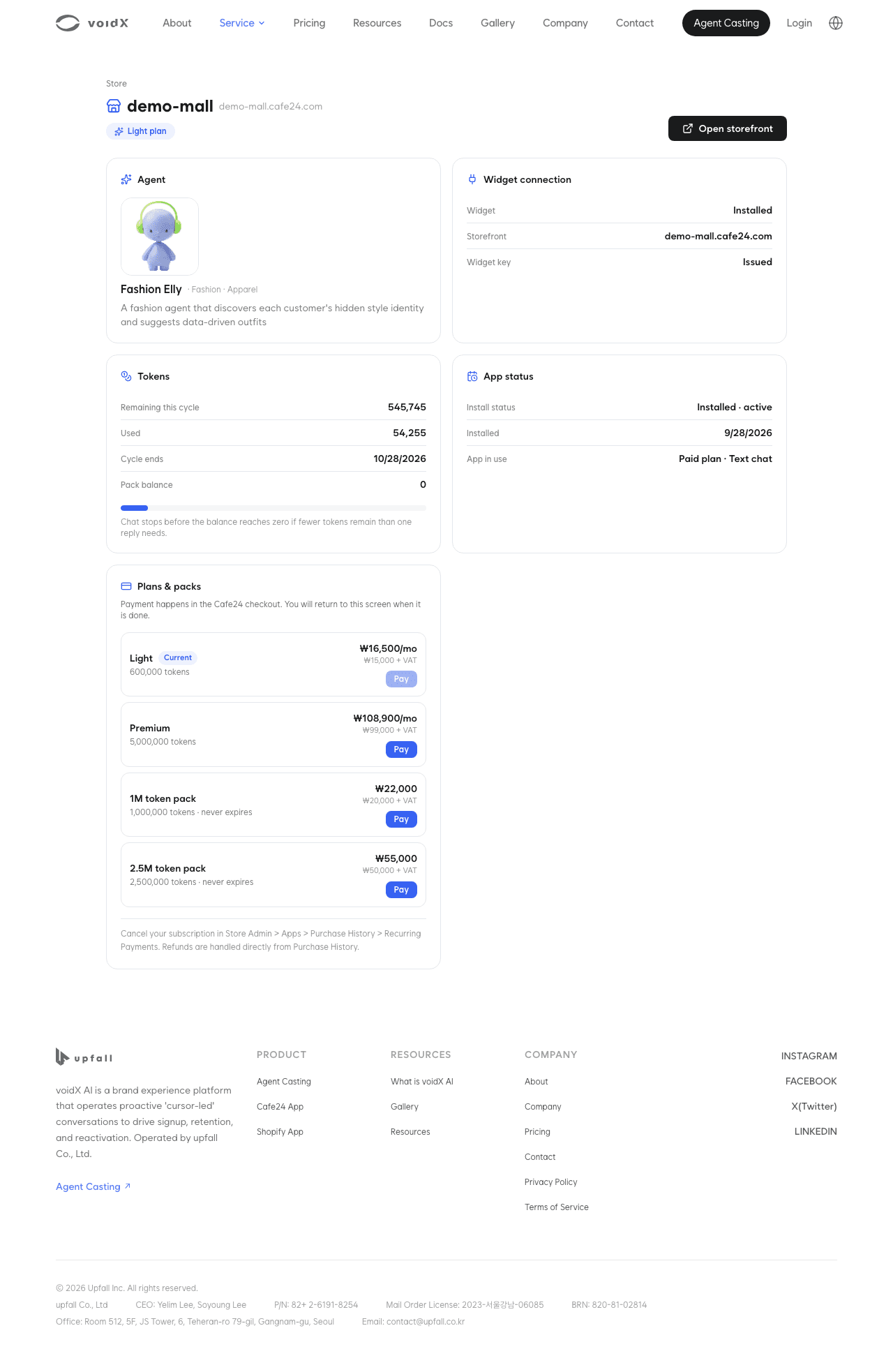
Viewing operating status on the dashboard
After installation, the same address becomes the operations dashboard. "Plans & packs" at the top, the "Agent" and "Tokens" cards below it, and the connection status sheet floating at the bottom of the screen ("Widget connection" and "App status") show the current status and let you pay. The collapsed sheet shows a summary of the widget, widget key and app status, highlighted in amber when action is needed. Press "Show details" to expand both.
| Card | What it shows | What you can do |
|---|---|---|
| Plans & packs (top) | While subscribed, the current plan (plan, price, next billing date, monthly tokens, tokens left this cycle) and token packs; before subscribing, plan cards only (token packs appear after you subscribe) | "Subscribe", "Change plan", "Buy" |
| Agent | Name, industry and one-line introduction of the assigned agent | Nothing |
| Widget connection (bottom sheet) | Widget "Installed"/"Not installed", store address, widget key "Issued"/"Not issued" | "Reinstall widget" when not installed |
| Tokens | Available tokens (this cycle + packs), usage rate, remaining this cycle, used, cycle end date, pack balance, run-out forecast at the current pace | Nothing |
| App status (bottom sheet) | Installation status, last installed date, free trial history (status, period, tokens used) | Nothing |
Notices appear at the top of the dashboard only when action is needed. When chat has stopped (tokens used up, no plan, subscription or trial ended) or may stop soon (80% of this cycle used, 2 days before the trial ends), the notice explains why and offers "Choose a plan" or "Buy a token pack". After a plan switch or a refund, a notice lists which recurring payments to keep and which to cancel. Cafe24 does not tell us about cancellations, so this notice stays for a while even after you cancel. You can close the notices, and they appear again the next time you open the dashboard.
The "FAQ" at the bottom of the dashboard collects how to pay, where to cancel or request refunds, what happens to the previous plan when you switch, how token packs are used, and how chats left are estimated. Chat stops before the balance reaches zero if fewer tokens remain than one reply needs. If the agent appears but chat does not open, first see Trial expired (Cafe24), then pay on the "Plans & packs" card.
The "Open storefront" button at the top opens your store in a new tab at any time.
How product information comes in
The Cafe24 channel does not crawl web pages. Products are fetched through the Cafe24 product API.
- All products are fetched once right after installation.
- After that, registering, editing or deleting a product, or a change in sold-out status, is reflected automatically.
- All products are resynchronized once a day.
The agent does not know about products that are not displayed, not for sale, members-only, or subject to adult verification. If the agent does not know a specific product, first check that product's display and sale settings in Cafe24. The conditions under which product cards appear are covered in Product cards not showing.
Setup check
| Item | How to check |
|---|---|
| Widget display | Refresh a product detail page and check that the agent appears at the bottom right |
| Chat | Ask the agent about a product and check that it answers with the product name |
| Connection status | Check that "Widget" in the connection status sheet at the bottom of the dashboard shows "Installed" and "Widget key" shows "Issued" |
| Product intake | Refresh the dashboard and check that the agent knows about new products |
The agent's name and greeting cannot be changed on this dashboard.
Next steps
- For the screen elements visitors see, see Chat screen.
- If the agent does not appear, see Widget not showing.
- If chat does not open after the free trial ends, see Trial expired (Cafe24).
- For the conditions for showing product cards, see Product cards not showing.