What is the chat screen
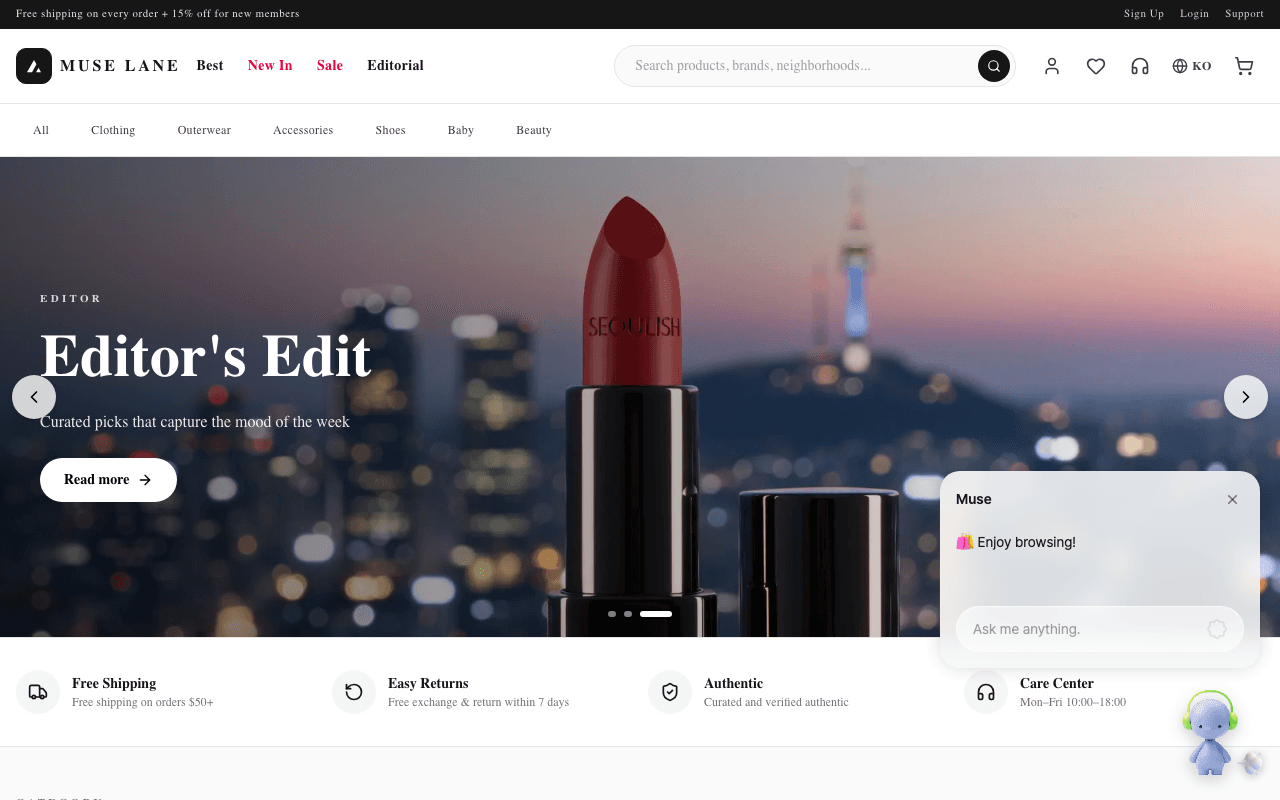
The chat screen is the surface of the widget that visitors see on your site. It is not a chat window that starts out open. It starts as a single character in a corner of the screen, and a conversation opens when the agent greets the visitor or the visitor clicks the character.
This document covers only the elements visible to visitors. Turning elements on and off is covered in Widget settings.
Character and speech bubble
The character always floats at the edge of the screen. Dragging it moves it, and clicking it opens a conversation. The character carries the hint "Drag to move · click to chat".
The speech bubble appears above the character. The widget uses it when the agent greets the visitor first, and when the visitor exchanges short messages without opening the chat panel. If an unread answer remains, an unread badge appears on the character.
Chat panel
Clicking the character opens the full chat panel. If the visitor is chatting briefly in the speech bubble and clicks "View full conversation", the same conversation continues in the panel. Long answers and tables are read by scrolling in the panel.
Until the panel is opened, answers are shown in the speech bubble split into short segments. When there are two or more segments, the visitor moves through them with "Next", and progress is shown with a bar and numbers.
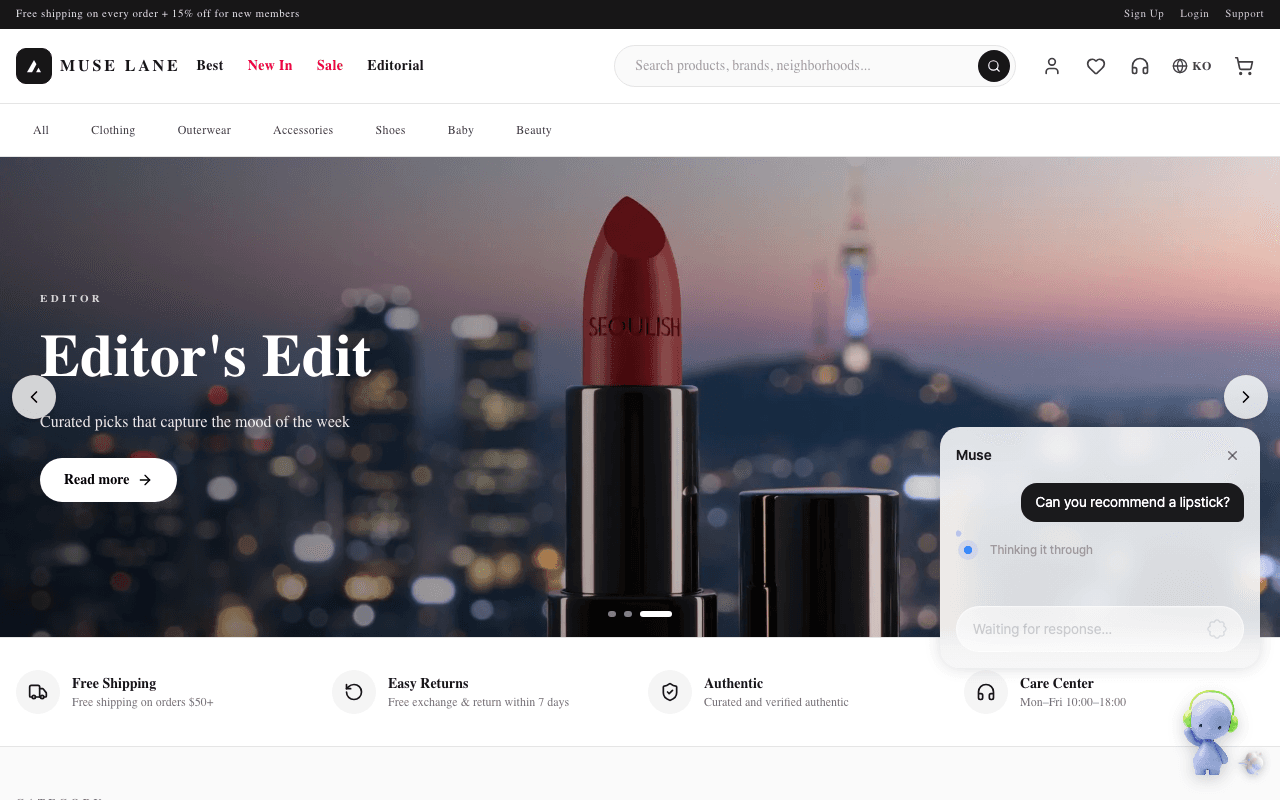
Progress indicator while answering
After a visitor sends a question, the widget shows the current step in a single line until the answer is complete. This lets visitors decide whether to wait when a response is slow.
| Text | When it appears |
|---|---|
| Listening to your question | Right after the question is sent |
| Thinking it through | When the first character is slow to arrive |
| Checking the details | While searching registered knowledge |
| Looking for products | While searching product information |
| Checking your cart | While checking the cart |
| Putting the answer together | Final step |
When the answer is complete, the text settles all at once and lists and tables fall into place.
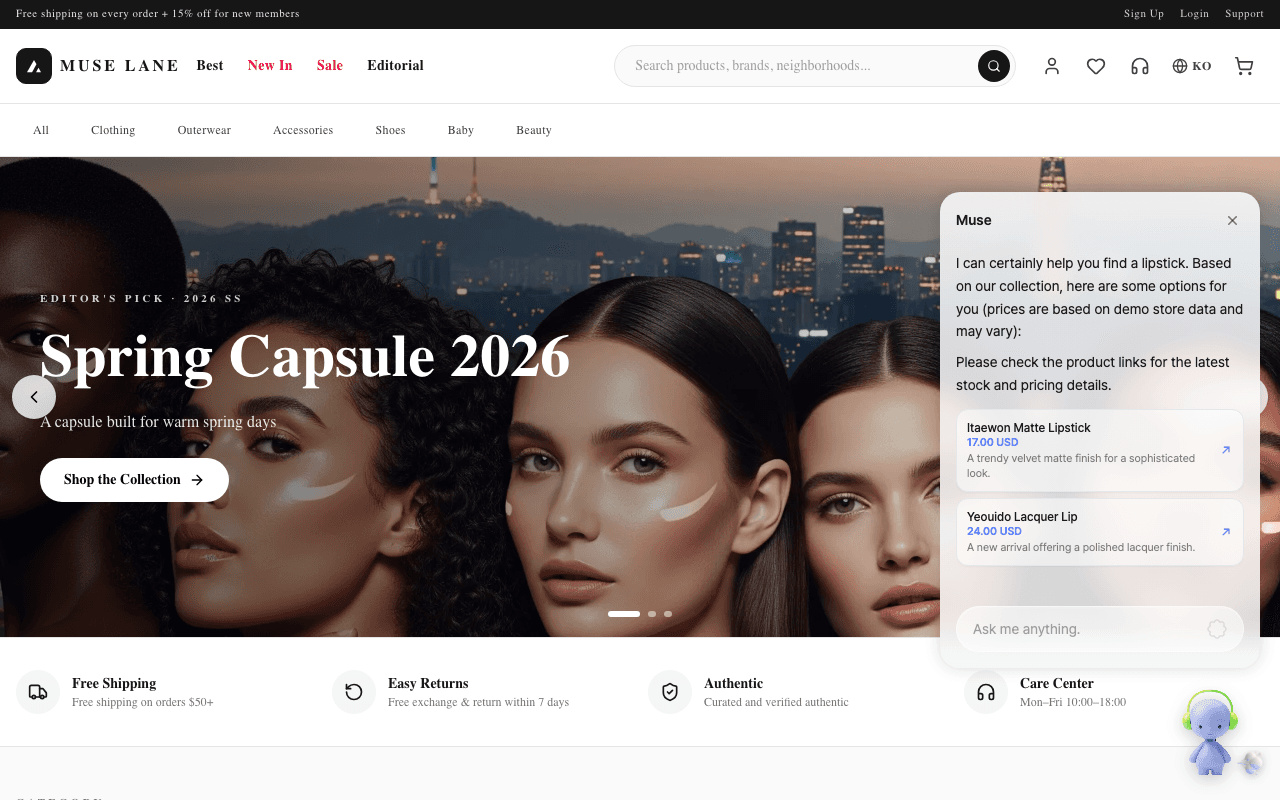
Elements attached to the end of an answer
When the answer body ends, product cards, link buttons and follow-up questions are attached below it in that order. All three appear only after the answer is complete.
| Element | Condition | Limit |
|---|---|---|
| Product cards | A list item in the answer has a bold title or price and links to your own site | 3. Extra items stay as text in the body |
| Link buttons | In a directly installed widget, the answer contains a link to your own page on a single line | 2 |
| Follow-up questions | In a directly installed widget, the answer is complete and there are candidate next questions | 3, up to 18 characters each |
On a Cafe24 store, cards are also built from product information sent by the server, and thumbnails are shown with them. In a directly installed widget, clicking a card opens it in a new tab. In store channels, it goes to the product page in the same tab.
Follow-up questions sit inside the input box as a numbered list. When the visitor clicks one, that text is sent immediately. While an answer is in progress, the list stays dimmed and is replaced with a new list when the next answer starts.
Example:
Visitor: Can you recommend a winter coat?
Agent: Here are three coats we currently carry. (answer body)
Below the answer, 3 product cards. Inside the input box, "1. See other products / 2. Ask about shipping / 3. End chat"
Status notices
When the widget needs to report a status instead of an answer, it shows a notice line with a colored dot rather than a speech bubble. If all four cases shared the same error text, visitors could not tell whether to wait or send again.
| Situation | What the visitor sees | Input box |
|---|---|---|
| Usage limit reached | Amber notice and "Usage limit reached." Answers already received stay | Locked |
| Connection expired | "Your session expired and is reconnecting. Please try again shortly." | Available |
| Answer declined | "Sorry, that's a question I can't answer." | Available |
| Temporary error | "Something went wrong. Please try again in a moment." | Available |
If the internet connection drops, "Internet connection lost." appears separately at the bottom of the screen.
After the usage limit notice appears, new visitors cannot start a conversation either. When it lifts is covered in Tokens and usage.
Next steps
- For the conditions under which the agent greets visitors first, see Proactive greetings.
- When product cards do not appear, see Product cards not showing.
- For turning screen elements on and off, see Widget settings.