The profile (/profile) is the first screen you reach after signing in. It shows your account status and plan at a glance and is also the entry point to the other screens.
It opens without a membership.
Screen layout
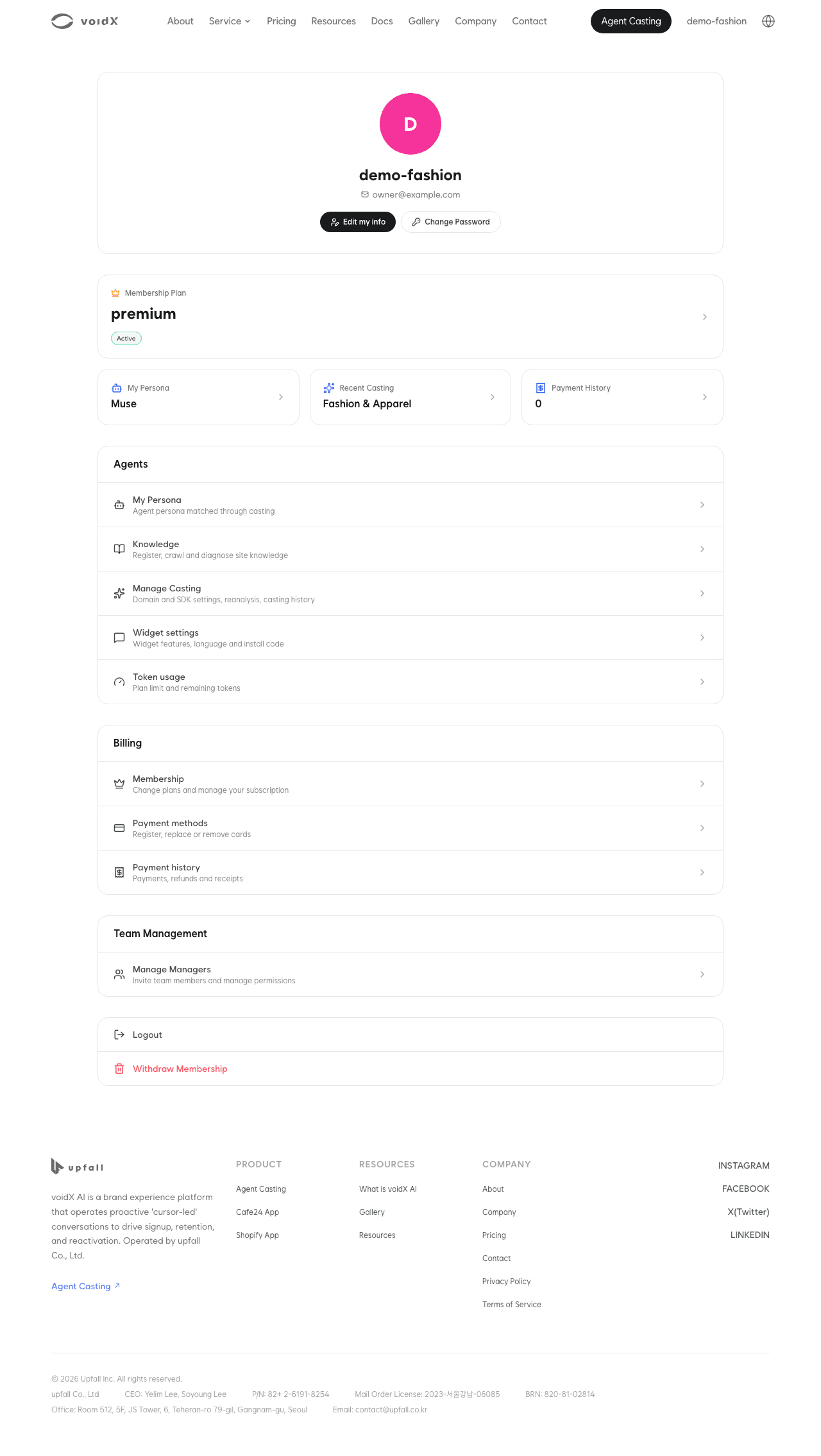
From top to bottom, the screen has four areas.
- Header card: avatar, nickname, email and edit button
- Dashboard: cards summarizing your membership plan and recent activity
- Menu: a list of links to the agent, billing and team management screens
- Logout and account withdrawal
If you have not set a nickname, the notice "You haven't set a display name yet. Add a nickname and it will appear instead of your email address." and "Set a nickname" are shown.
Editing your info
Clicking "Edit my info" opens the "Edit Profile" window.
| Item | Editable |
|---|---|
| "Nickname" | Yes |
| "Receive service notifications" | Yes |
| No | |
| Profile image | No |
Changing your password
Clicking "Change Password" opens a window for entering "Current Password", "New Password" and "Confirm Password". The new password must be at least 8 characters.
As the window says, "Changing your password signs you out automatically." Sign in again with the new password right after the change.
There are two social sign-in options, "continue with Google" and "continue with Apple". Accounts created with social sign-in use that service's sign-in instead of a password.
Dashboard
| Card | Content | Goes to |
|---|---|---|
| "Membership Plan" | Plan name, status, "Next Payment {date}". Before subscribing, "You don't have an active membership yet." and "Start subscribing" | Membership and billing |
| "My Persona" | Persona name. "Unmatched" if none | Persona and casting |
| "Recent Casting" | Matched industry or analysis status. "No Casting" if none | Connect agent |
| "Payment History" | "{orderCount}" | Payment history |
Menu
Below the dashboard, the screens are listed by section. Items that require a membership have a lock, and clicking one shows the notice "“{feature}” is available after you join". Items are locked rather than removed from the list so that you can see in advance what joining unlocks.
| Section | Items |
|---|---|
| "Agents" | "My Persona" · "Knowledge" · "Connect agent" · "Widget settings" · "Token usage" |
| "Billing" | "Membership" · "Payment methods" · "Payment history" |
| "Team Management" | "Manage Managers". Shown only to admin accounts |
Logout and account withdrawal
"Logout" and "Withdraw Membership" are at the very bottom.
Clicking "Withdraw Membership" asks once more, "Are you sure you want to withdraw? All your data will be permanently deleted.", and confirming deletes the account and its data. If you have an active subscription, settle it before withdrawing.
Next steps
- For cancelling your subscription and removing your card, see Membership and billing.
- For sharing permissions with team members, see Manager management.