Opening "Manage Managers" (/managers) from the "Team Management" section of your profile lets you invite team members and set their roles. Invited managers sign in with their own accounts and handle only the scope they are given.
This section is shown only to admin accounts. Opening the address directly with another role shows "Only admins can manage managers."
Permissions by role
There are three roles: Viewer, Editor and Admin. The admin handles billing and keys, editors edit the persona and knowledge, and viewers can view.
| Action | Viewer | Editor | Admin |
|---|---|---|---|
| View persona | Yes | Yes | Yes |
| Edit persona | No | Yes | Yes |
| Open Knowledge screen | Yes | Yes | Yes |
| Register, edit, delete, re-collect knowledge | No | Yes | Yes |
| Save widget settings | No | Yes | Yes |
| View and copy widget key value | No | No | Yes |
| Connect agent (apply agent and issue key) | No | No | Yes |
| View token usage | No | No | Yes |
| Invite managers, change roles, remove | No | No | Yes |
The line below the invite form sums it up: "Editors have write and delete permissions, viewers have read-only access."
A screen blocked by a missing role does not open by paying. When a Viewer saves the persona, "You have view-only access. Editing requires the Editor role or above." is shown, and in that case ask the admin for a higher role.
Inviting a manager
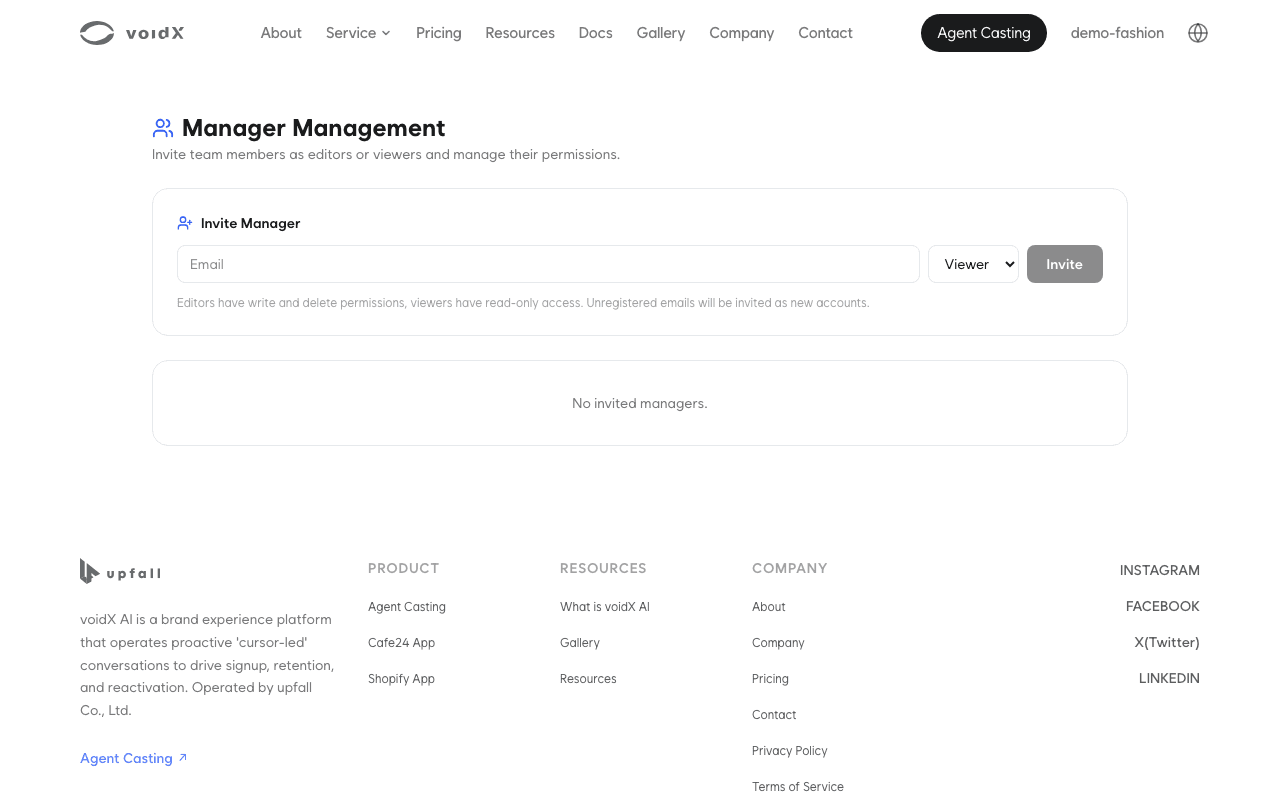
- Enter an email address in the "Invite Manager" form.
- Choose a role ("Viewer" or "Editor"). The default is Viewer.
- Click "Invite".
The result depends on whether the person has signed up.
| Person | Result | Message |
|---|---|---|
| Existing member | Connected as a manager immediately | "{name} has been added as a manager." |
| Email not signed up | Invitation email sent | "An invitation email has been sent to {email}. They will appear in the list once they accept within 7 days." |
A person who received an invitation email does not appear in the list until they accept. This message is the only record that the invitation was sent, so note separately whom you invited.
| Blocked case | Message |
|---|---|
| Account already connected | "This account is already connected as a manager." |
| Valid invitation still pending | "This email already has a pending invitation. You cannot send another while it is still valid." |
| Your own email or invalid format | "You cannot invite your own email, or the email format is invalid." |
Accepting an invitation
The invited person clicks the button in the email and arrives at /member/manager-invite. The link is valid for 7 days and can be used only once.
| Situation | Screen |
|---|---|
| Not signed in | "Sign in to continue" "Sign in with the email address that received this invitation. We'll pick up where you left off." |
| Email not verified | "Couldn't accept the invitation" "Please check that your email verification is complete." and "Verify email" |
| Already a manager | "You're already a member" |
| Expired or used link | "This invitation link no longer works" "The link has expired or was already used. Invitations are valid for 7 days." |
| Success | "Invitation accepted" "You have joined the inviting account's workspace." |
The invited account must complete email verification with the verification email received at sign-up before it can accept. After accepting, switch workspaces on the sign-in screen to see the inviting account's persona and knowledge.
Changing roles and removing managers
Connected managers are listed with their email and status ("Active" or "Disabled"). If there are none, "No invited managers." is shown.
| Action | How |
|---|---|
| Change role | Choose "Viewer" or "Editor" in the row's select box. Applied immediately |
| Remove | The row's trash button. Removed immediately without a confirmation dialog |
Clicking the trash button removes the connection right away without asking. The person's account itself remains, and only their permissions for this workspace are removed. To connect them again, invite the same email.
Next steps
- For the admin account's settings, see My account.
- For widget keys, which only the admin handles, see Widget settings.