Opening "Payment Settings" (/payment) from the "Billing" section of your profile or from the sidebar shows three menus for subscriptions and payments. A subscription is charged automatically to the registered card on the same date each month, and plan tokens are granted anew with each payment.
Accounts that have not subscribed yet see "You don't have an active membership yet." and a "Subscribe" button.
Screen layout
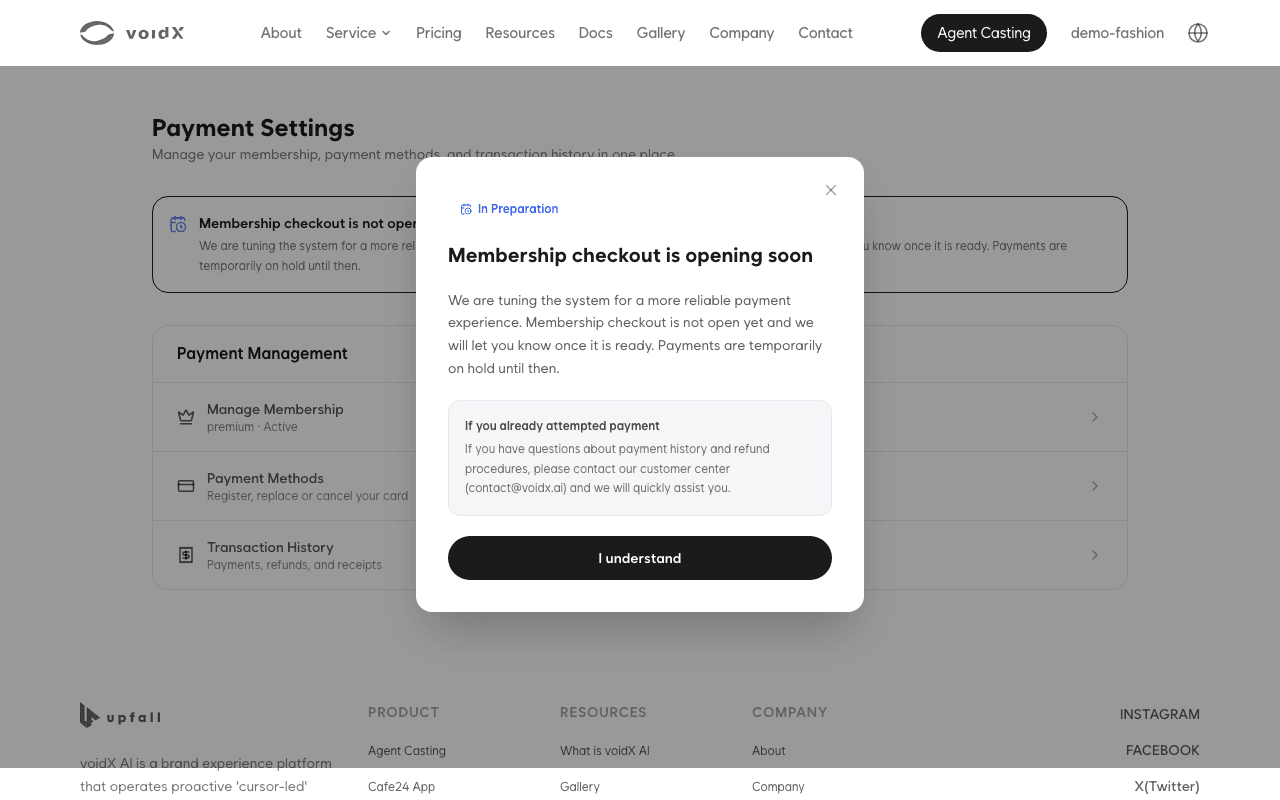
| Menu | Path | What it does |
|---|---|---|
| "Manage Membership" | /payment/membership | View current plan, change plan, cancel or resume subscription |
| "Payment Methods" | /payment/cards | Register, replace or remove a card |
| "Transaction History" | /payment/orders | Payment and refund history and receipts |
Manage Membership
While subscribed, four lines of information are shown.
| Item | Value |
|---|---|
| "Current plan" | Name of the plan in use |
| "Status" | "Trial" · "Active" · "Paused" · "Refunded" · "Expired" |
| "Next billing date" | A date only when auto-renewal is on. Otherwise - |
| "Auto-renewal" | "On" · "Off · access ends {date}" · "Ended" |
Changing plans
The cards in the "Change plan" area are available only in the "Active" status. Each card shows the plan name, monthly price and "{limit} tokens / month", and the current plan has a "Current" badge.
| Direction | Takes effect | Charge |
|---|---|---|
| Upgrade | Immediately | Difference charged to the registered card right away. No proration, billing date unchanged |
| Downgrade | Next billing date | No charge or refund |
- Click "Switch to this plan" on the card of the plan you want.
- Check the text on the confirmation card. An upgrade shows "Your plan changes to {plan} immediately, and the difference of {amount} is charged to your registered card right away.", and a downgrade shows "Your plan changes to {plan} from the next billing date. Nothing is charged now."
- Click "Change plan" to confirm.
A scheduled downgrade has a "Scheduled next cycle" badge. Clicking that card again runs "Cancel scheduled change" without confirmation. The Customize plan leads to "Contact us" instead of payment.
Cancelling and resuming a subscription
Cancelling turns off auto-renewal and does not end the subscription immediately. Clicking "Cancel subscription" shows "You keep full access until {date} and there is no refund. Your card stays on file, so you can restart at any time."
Clicking "Cancel subscription" in the confirmation shows "Your subscription is cancelled. You can use it until {date}." and "Auto-renewal" changes to "Off".
While auto-renewal is off, a "Resume subscription" button is shown. Clicking it shows "Auto-renewal is back on." If you removed your card, "You need a card on file to resume. Register one and try again." and "Register a card" are shown instead.
When the access period ends and the status becomes "Expired", the cancel and resume buttons disappear and you need to subscribe again.
Payment methods
Only one card can be registered. As the screen explains, "registering a new one cancels the existing card." A registered card is shown with its brand, "{card_name} •••• {last4}" and registration date.
Clicking "Register a card" or "Replace with another card" opens the entry screen.
| Field | Format |
|---|---|
| "Card Number" | 15 to 16 digits |
| "Expiration Date" | MM / YY |
| "First 2 Digits of Password" | 2 digits |
| "Date of Birth or Business Registration Number" | 6-digit date of birth or 10-digit business registration number |
If the card issuer declines, "The card issuer declined this card. Check the details or try another card." is shown.
Removing a card with "Remove" cannot be undone. If you have an active membership, the automatic payment on the next billing date will not go through and the subscription may be paused. To change cards, use "Replace with another card" instead of removing.
Payment history
Payment and refund history is listed newest first. Each row shows the plan name, status, approval date and amount.
| Status | Description |
|---|---|
| "Pending" | Waiting for payment result |
| "Paid" | Approved |
| "Failed" | Not approved |
| "Refunded" | Cancellation processed |
Cancelling a payment
The "Cancel payment" button is shown only for payments in the "Paid" status within 7 days of approval. After 7 days the button disappears and cancellation is handled through customer support.
- Click "Cancel payment". "Payments can only be cancelled within 7 days. Granted tokens are reclaimed up to your remaining balance." is shown.
- Enter the "Reason".
- Clicking "Request cancellation" shows "Your refund is complete." and "{tokens} tokens reclaimed".
Tokens already used are not reclaimed; only the remaining balance is. Checking your usage before cancelling lets you predict how much will be reclaimed.
Cancelling a Premium payment also shows "Since the premium payment was refunded, your plan switches to Light from the next billing date.", and in other cases "Auto-renewal has been turned off following your refund." is shown.
Receipts
Expanding the arrow on a row opens the "Receipt". It shows "Subtotal", "VAT (10%)", "Total" and "Issued", and "Download PDF" saves the file.
Next steps
- For tokens included in each plan, see Tokens and usage.
- For your current balance, see Token usage.
- When conversations stop because tokens ran short, see Tokens used up.