The agent's character is set in three places. You cast your site on the public Agent Casting page, connect the result to your site in "Connect agent", and edit its name and tone in "My Persona". Editing the persona changes how the widget speaks without casting again.
The two console screens are in the "Agent" group of the sidebar. "Connect agent" (/casting) opens without a membership, and "My Persona" (/persona) requires one. How casting works is covered in Persona casting.
Screen layout
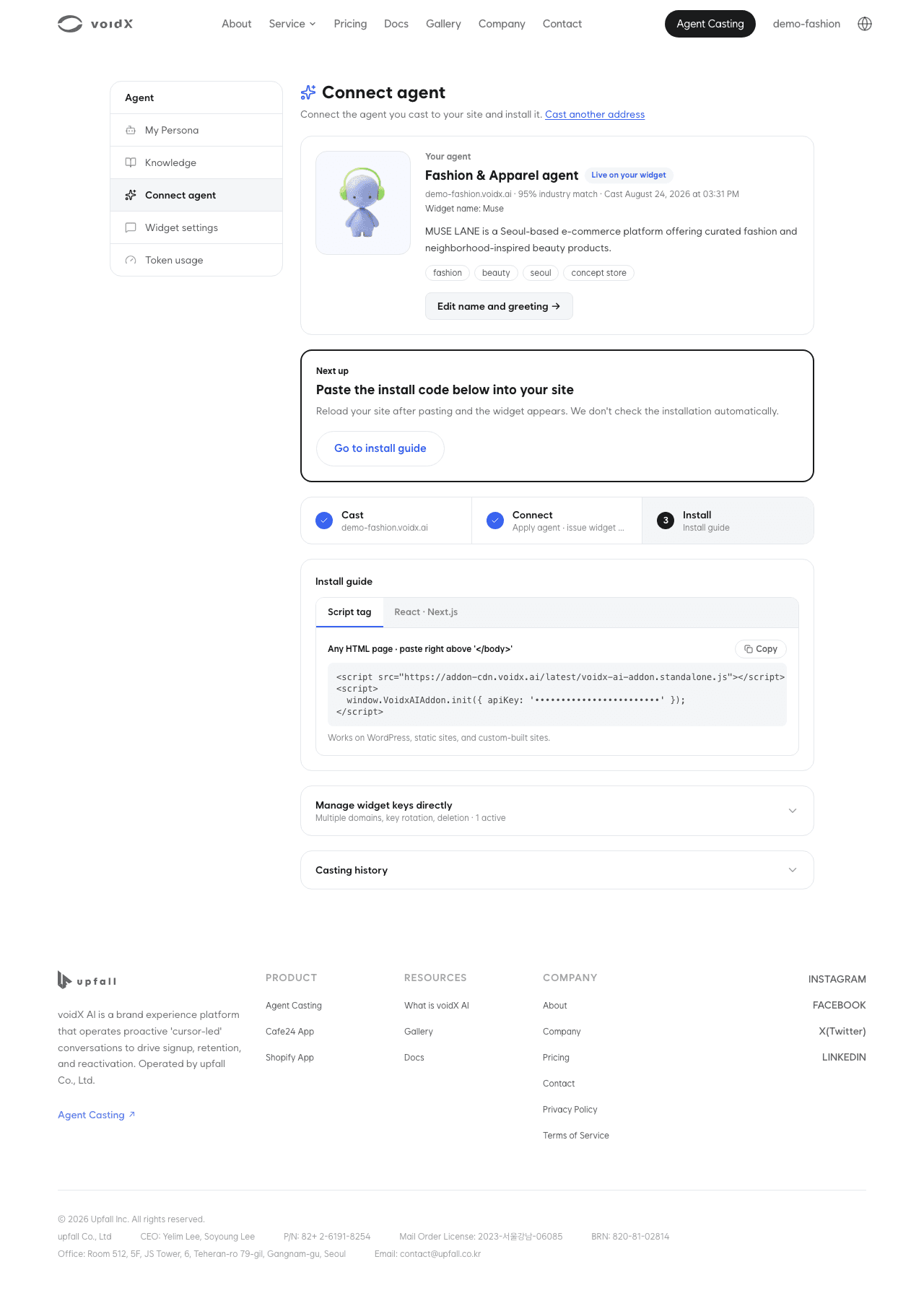
From top to bottom, the Connect agent screen has these parts.
- Agent card: the industry agent from your latest casting result, the site summary, keywords, and a status badge
- "Next up" card: the one thing to do now and its button
- Step indicator: three steps, "Cast", "Connect" and "Install"
- "Install guide": where the install code for your site appears once you connect
- "Manage widget keys directly": a collapsed list of widget keys. See Widget settings for details
- "Casting history": a collapsed list of castings and their details
This screen has no address field. To cast another site, click "Cast another address" under the title to go to the public casting page.
The "Next up" card shows one item depending on the account.
| State | Next up |
|---|---|
| No casting result yet | "Cast your site" |
| Result saved, no plan yet | "Contact us" |
| Paid Admin, not connected | "Connect this address" |
| Paid Editor or Viewer | A note to connect with the Admin account |
| Connected | "Go to install guide" |
| New result saved after connecting | "Connect new result" |
The agent card badge is one of "Saved · not connected", "New result · not connected" and "Live on your widget". "Live on your widget" appears when the latest result's industry agent is applied to your widget and a widget key exists for that address. The screen cannot check whether the code is installed, so the "Install" step never turns complete.
Saving a result
On the public casting page, click "Start with this agent" under the result and sign in. The result is saved to your account and you land on this screen with "The result you cast on the public page is saved to your account." at the top.
Saving only carries over when you sign in from the window where you saw the result. If you sign in from another window or browser, "The result you just saw stayed in that window and couldn't be carried over. Cast once more and it will be saved right away." is shown. If the result is older than 7 days or was already saved, "We couldn't find the result to save. Please cast again." is shown.
Connecting the agent
Connecting applies the saved result's industry agent to your widget and issues a widget key for that address's domain. It requires both the Admin role and a membership.
- In the "Next up" card, click "Connect this address".
- Read the confirmation. Connecting changes the agent's role on every widget in the account, analyzes the site once more using 1 of your 10 daily analyses, and the industry may differ from the saved result because the site is read again. A notice about regulated industries such as finance and healthcare and a link to the Terms of Service are shown as well.
- Click "Connect". While it runs, the steps "Reading your site", "Matching your industry" and "Casting your agent" are shown.
When it finishes, a result message appears.
| Result | Message |
|---|---|
| Connected | "Connected. Paste the install code below into your site." |
| Industry changed | "The agent was applied to match this analysis ({industry})." |
| No industry | "We couldn't pin down one industry, so the default agent was applied." |
| Limit reached | "You've used all of today's analyses. Please connect again tomorrow. Your widget key still works." |
| Site not read | "We couldn't read the site, so the agent wasn't applied. Check the address and connect again." |
The widget key is issued before the analysis, so it stays even if the analysis fails. If the saved result is less than 24 hours old, it also counts toward the daily limit.
Casting history
Expand "Casting history" to see the sites you cast, newest first. Each page shows 10 entries, and "Previous" and "Next" move between pages. If no site has been analyzed, "No casting history yet." is shown.
Each row has the address, industry and time, and a status badge.
| Status badge | Description |
|---|---|
| "Analyzing" | Analysis in progress |
| "Completed" | All items analyzed |
| "Partially analyzed" | Only some items analyzed |
| "Analysis failed" | Site could not be read |
Rows where no industry was found show "No industry match". Clicking a row opens a detail card right below it.
| Item | Content |
|---|---|
| "Industry match" | One of Fashion & Apparel, Beauty & Cosmetics, Food & Beverage, Education & EdTech, Tech & IT, Travel & Tourism, Healthcare & Wellness, Finance & Fintech, Living & Interior, Entertainment & Content. "Industry could not be determined" if none fits |
| "Estimated confidence {percentage}%" | Certainty of the industry match |
| "Site summary" · "Brand tone" · "Extracted keywords" | Character of the site as read by the analysis |
| "SEO audit" | "{score}" and a list of findings |
Editing the persona
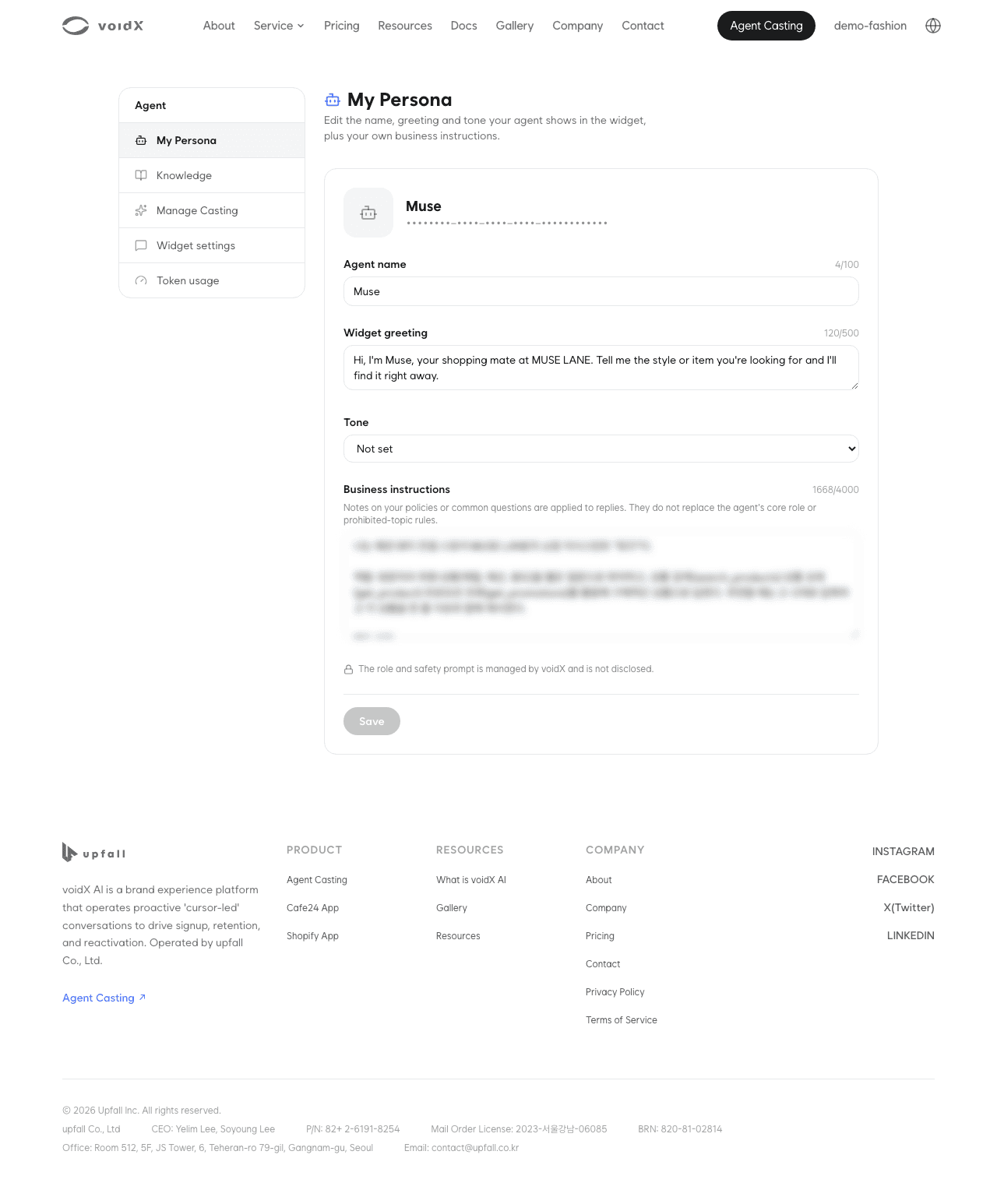
"My Persona" is the screen for editing the name, greeting and tone the agent shows in the widget, plus your business instructions. A persona is created when you connect the agent you cast to your site, so before connecting the screen shows "You don't have a persona yet." and a "Go to Connect agent" button.
Saving is available to Editor accounts and above. When a Viewer account saves, the screen switches to read-only and shows "You have view-only access. Editing requires the Editor role or above."
| Field | Max length | Description |
|---|---|---|
| "Agent name" | 100 characters | The name the widget uses for the agent. Required |
| "Widget greeting" | 500 characters | The first message offered to visitors. Required |
| "Tone" | 50 characters | "Not set" or one of friendly · professional · casual · formal · playful |
| "Business instructions" | 4000 characters | Brand policies or information you often give out. Reflected in replies, but does not replace the agent's core role and prohibited-topic rules |
A "{count}/{max}" character count is shown to the right of each field, and going over shows "Must be {max} characters or fewer." Leaving a required field empty shows "This field is required." and locks the save button.
"Save" applies your edits and "Revert" discards them. After saving, "Saved." appears briefly.
As the note at the bottom of the screen says, "The role and safety prompt is managed by voidX and is not disclosed." The agent's core role and prohibited-topic rules are neither shown nor changed on this screen. Business instructions are additional guidance added on top of them.
Casting and the persona
Connecting a new result keeps the name, greeting and tone you set in "My Persona". The agent's core role changes to fit the new industry, and business instructions you edited reset to the new industry's default only when the industry changes. Connecting applies to every widget in the account.
To change only the tone, edit it in "My Persona". When your site address has changed or a new domain needs a widget key, cast the new address and connect again.
Next steps
- For widget key management and the embed code, see Widget settings.
- For the order of first-time setup, see Sign-up and initial setup.
- For what casting reads and what it creates, see Persona casting.