The Knowledge screen is where you register and manage the knowledge the agent uses in its replies. When you register a site address, voidX AI reads its pages and stores them as knowledge, then looks for answers in that knowledge when visitors ask questions. How knowledge is used in replies is covered in Knowledge and answers.
The screen opens from the "Knowledge" (/knowledge) menu in the sidebar. It is available with a membership and the Viewer role or above, and registering, editing and deleting require an Editor account or above.
Screen layout
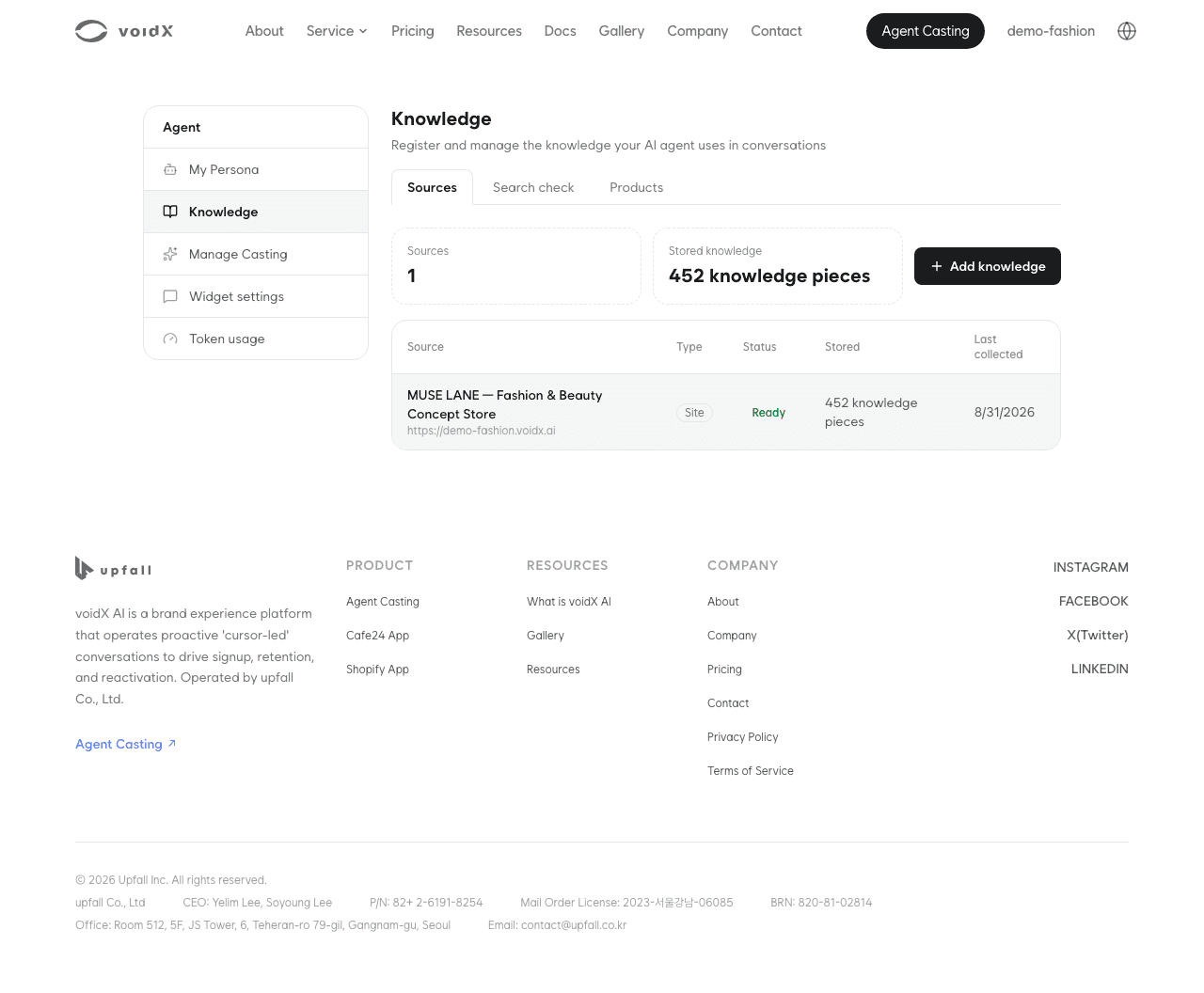
There are three tabs at the top of the screen, and the "Sources" tab shows summary cards and a source table.
- "Sources" (
/knowledge): registered sources and their status - "Search check" (
/knowledge/search): enter a question to check whether knowledge is found - "Products" (
/knowledge/products): product information organized during collection - Summary cards: the number of "Sources" and "Stored knowledge" ("{count} knowledge pieces")
- "Add knowledge" button: shown only to Editor accounts and above
Sources
The source table has the columns "Source", "Type", "Status", "Stored" and "Last collected". There are two types, "URL" and "Site". When no knowledge is registered, "No knowledge registered yet" and a "Start with site diagnosis" button are shown.
| Status badge | Description |
|---|---|
| "Pending" | Registered but not yet collected |
| "Collecting" | Reading pages. A progress bar is shown only for the most recently started job |
| "Ready" | Collection finished and used in replies |
| "Failed" | Collection did not finish and no knowledge was stored |
| "Update failed · answering from previous collection" | Collecting again failed, but previously stored knowledge is still used in replies |
Do not delete a source with the last badge. As its tooltip says, "Previously collected knowledge is kept and still used in conversations. Only the latest update failed."
When the list exceeds 200 entries, "Showing latest {shown} of {total}" is shown.
Adding knowledge
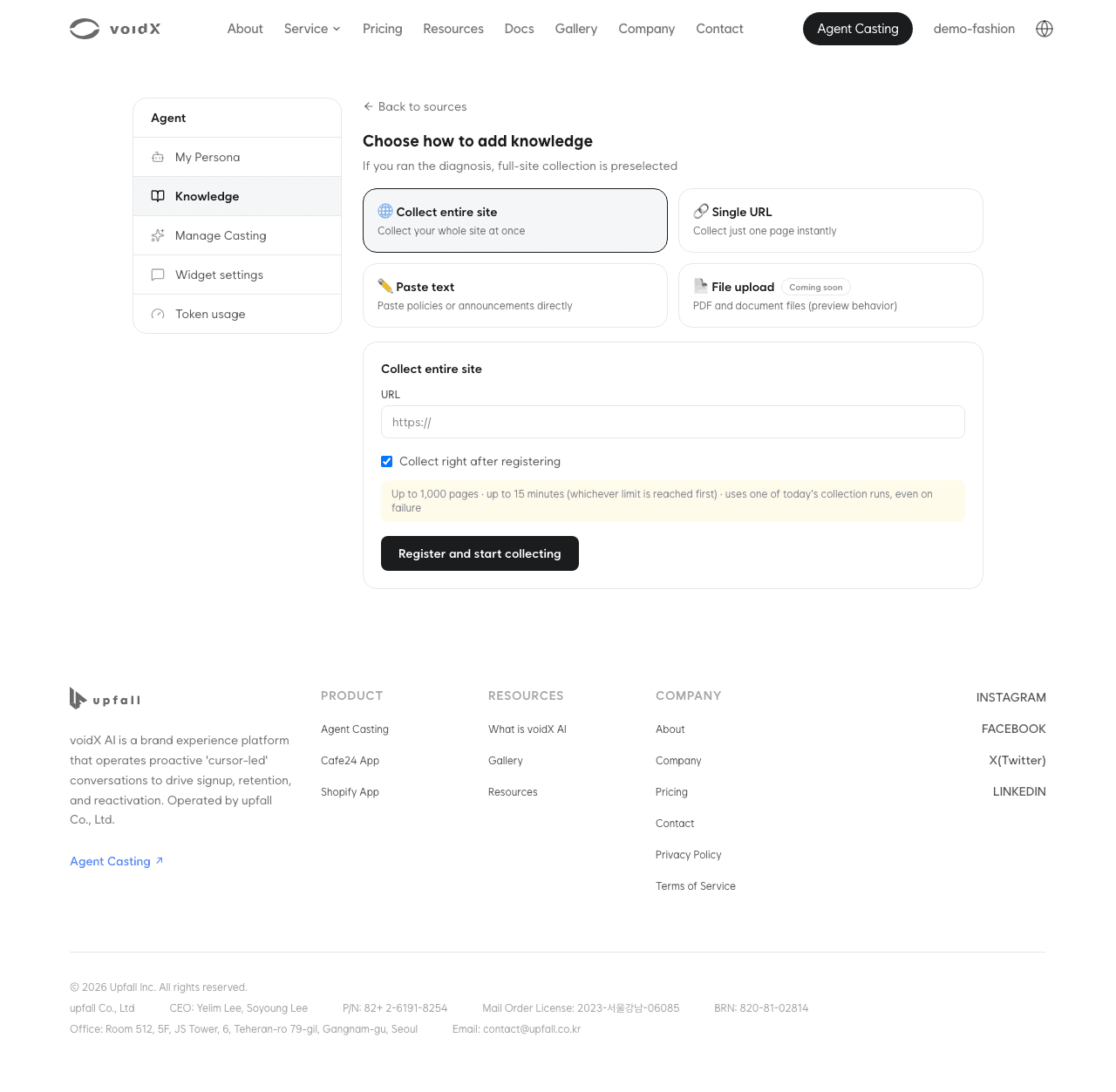
Clicking "Add knowledge" starts a two-step flow.
Step 1: Site SEO diagnosis
Enter an https address in "Your site URL" and click "Run diagnosis" to see the SEO score and findings. The diagnosis is for reference only, and you can try collecting regardless of the result.
| Result | Primary button | Also shown |
|---|---|---|
| Site read, score above 50 | "Continue with this site" | Nothing |
| Site read, score 50 or below | "Continue with this site" | "Ask about SEO/GEO improvement" secondary button |
| Site could not be read | "Ask about SEO/GEO improvement" | "Register anyway" |
To skip the diagnosis, click "Skip and register directly" below.
Step 2: Choose how to add knowledge
| Method | Use | Limit |
|---|---|---|
| "🌐 Collect entire site" | Reading the whole site | "Up to 1,000 pages · up to 15 minutes (whichever limit is reached first)" |
| "🔗 Single URL" | Reading one page right away | "Up to 400KiB per page is collected" |
| "✏️ Paste text" | Pasting policies or notices directly | Up to 400KB |
For the site and URL methods, "Collect right after registering" is on by default. Turning it off changes the button to "Register only", and the source stays in the list as "Pending". Both methods note that each run "uses one of today's collection runs, even on failure".
The same address cannot be registered twice. Entering an address that is already registered shows "This address is already registered. Re-collect it from the source list instead". Storing the same content twice would let that source take over the search results.
Knowledge entered as text does not appear in the list and cannot be edited or deleted after registering. To register it, you must check "I understand this cannot be edited or deleted after registering". Register content that may change through site collection instead.
Managing sources
Clicking a row in the list opens the source detail (/knowledge/{source}). The title, type and status badge, the address, "{count} knowledge pieces" and "Last collected {date}" are shown at the top.
Collection progress
While collecting, the "Collection progress" card shows the progress, "{done} / {total} pages" and "about {eta} remaining". The phases run in the order "Collecting pages", "Saving" and "Organizing products". If an earlier job is running, the card shows "Waiting in queue", and as it explains, jobs are processed "one at a time".
For a collection started on another device, no progress is shown, only "Collection is in progress. Detailed progress isn't available because it wasn't started on this device". Check the status badge to see whether it finished. A failed source also shows the "Failure cause".
Management buttons
The "Manage" area is shown only to Editor accounts and above.
| Button | Shown when | Confirmation text |
|---|---|---|
| "Edit URL" | Not collecting | None. Saving returns the source to "Pending" |
| "Start collection" | Status is "Pending" or "Failed" | None |
| "Cancel collection" | Collecting | "Cancel this collection?" "The collection in progress will stop." If knowledge was stored before, "Previously collected knowledge will be kept." is added |
| "Re-collect" | Status is "Ready" | "Re-collect this source?" "The site will be collected from scratch, and existing knowledge will be replaced once it completes. This uses one of today's collection runs (even on failure)." |
| "Delete source" | Not collecting | "Delete this source?" "This source and its {count} stored knowledge pieces will all be deleted. This cannot be undone." |
Until re-collection finishes, replies keep using the previous knowledge. It is replaced all at once on completion, so there is no gap in replies during collection.
When today's collection runs are used up, "You've used all of today's collection runs. Please try again tomorrow" is shown.
Search check
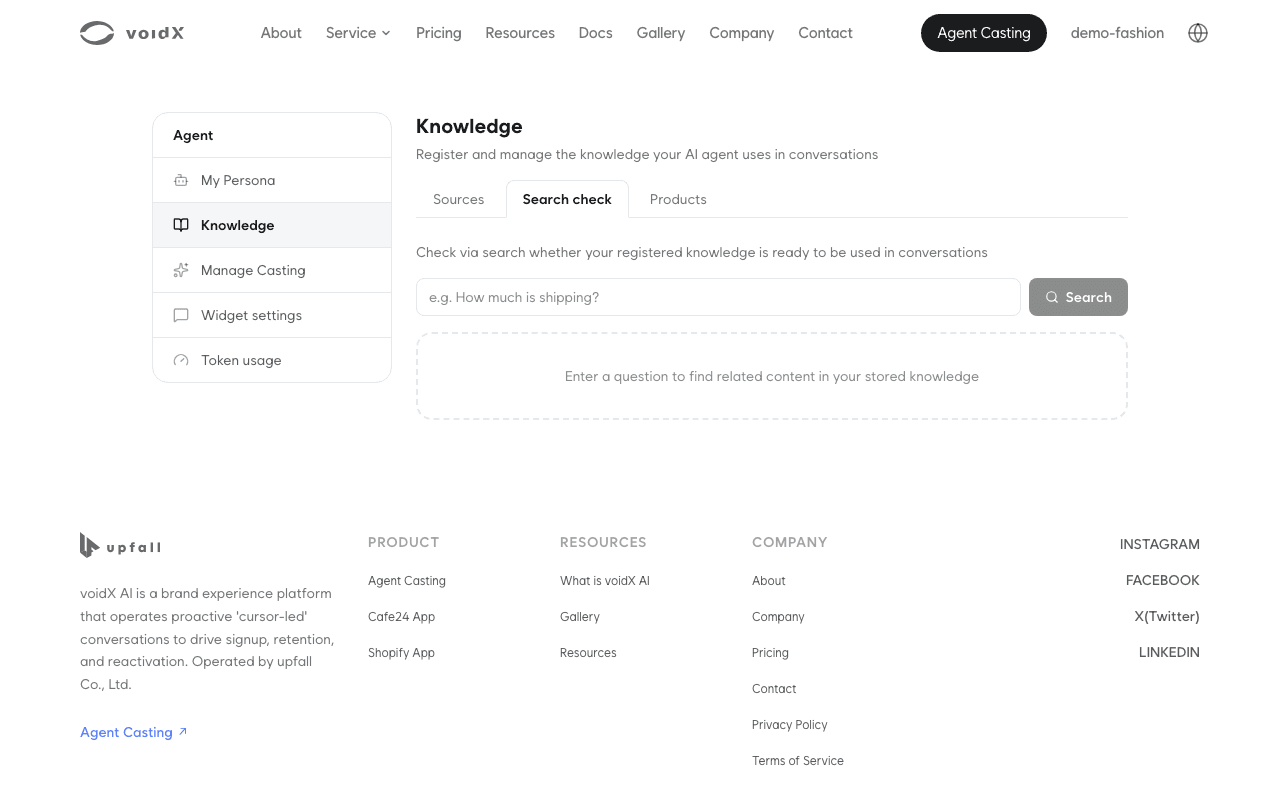
Enter a question a visitor might ask in the "Search check" tab and click "Search" to see up to 5 results found in your knowledge.
When replies differ from what you expect right after collection, check this tab first. An empty result shows "No related knowledge found. Try adding more knowledge", which means the content is not on the site or has not been collected yet.
Products
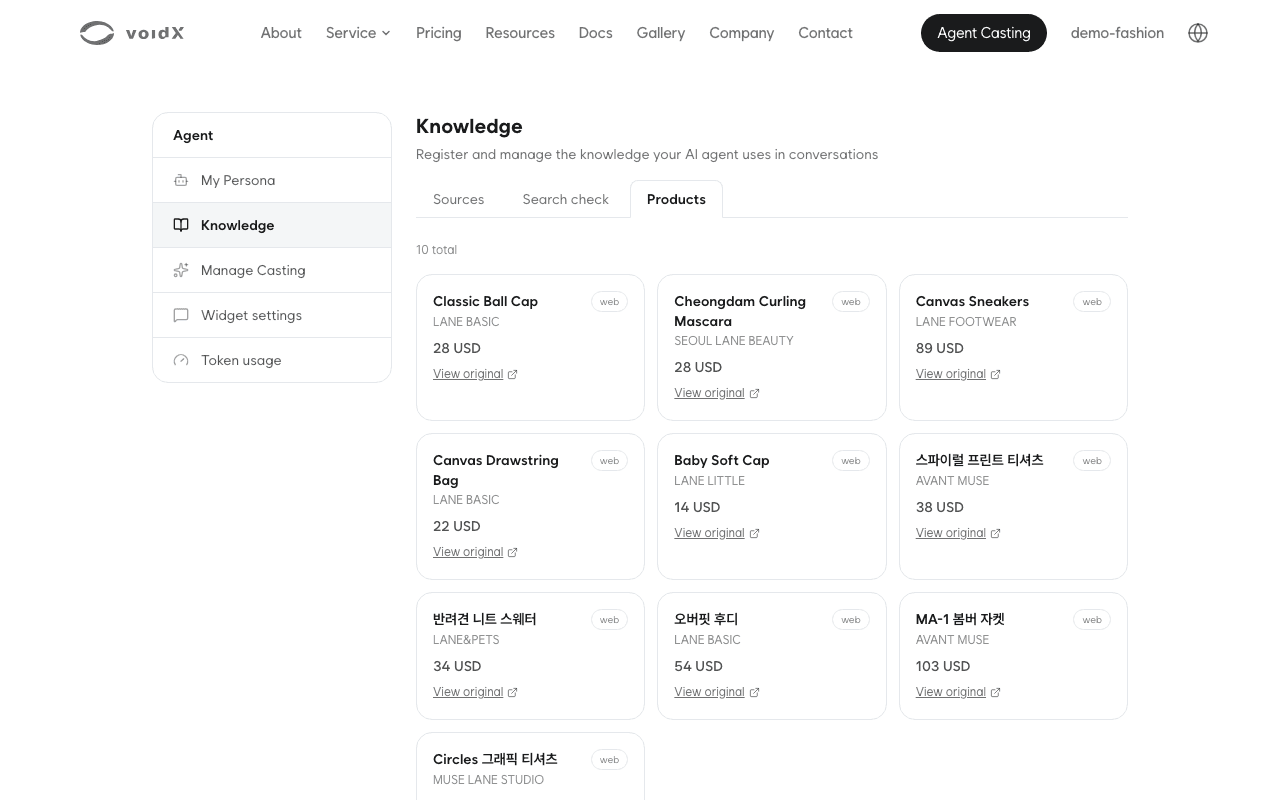
The "Products" tab shows products organized during site collection as cards. Each page has 24 entries, with "{count} total" at the top. Each card has the product name, brand and price, and "View original" opens the product page on your site in a new tab.
For a business without products, an empty tab is expected. The empty-state text says so as well.
Next steps
- If replies differ from your site after collection, see Inaccurate answers.
- For how knowledge is used in replies, see Knowledge and answers.